Why getting photos off a digital camera still feels harder than it should
The hardest part of beginner photography is often not exposure or focus. For many new creators, the real headache starts when they try to transfer photos from camera to phone and hit a wall of menus, cables, and failed connections. That gap between pressing the shutter on a digital camera and posting a photo or video on a phone is exactly where momentum dies for countless projects.
Think about a weekend vlogger shooting photos and short videos of friends, then staring at a tiny camera card icon wondering how to move anything. They may have an iPhone or Android phone, a tablet like an iPad, and maybe a laptop, yet none of these devices seems to talk cleanly to the camera. When the workflow to transfer from a camera feels slower than just shooting on the phone, people quietly stop using the camera and leave great photos from real lenses trapped on a card.
The goal is not to learn every obscure camera adapter or every USB standard. What you need is a simple playbook that matches your devices, respects data privacy, and works every single time you shoot. Once you have a reliable way to import photos from a digital camera to your phone, you can focus on framing, light, and timing instead of wrestling with a USB camera cable at midnight.
Wireless apps: when to use them, when to walk away
Most modern cameras ship with a companion app that promises to transfer photos from camera to phone over Wi‑Fi or Bluetooth. Canon Camera Connect, Nikon SnapBridge, Sony Imaging Edge Mobile, and Fujifilm Camera Remote are typical examples. In practice, these apps often frustrate beginners with pairing loops, dropped connections, and painfully slow imports of large RAW photo files. Yet when they are set up correctly, they can be the fastest way to move a handful of photos from a digital camera to an iPhone or Android phone for quick posting.
Start by pairing once, carefully, and letting Bluetooth stay on so the camera and phone remember each other. Use the app to browse photos from the camera card, then select only a few JPEGs or compressed photos and short videos instead of trying to import everything at full resolution. For creators who shoot themselves talking to camera, this selective transfer from digital camera to phone is usually enough to grab a thumbnail, a reel, or a short clip without waiting for gigabytes of data to crawl over Wi‑Fi at 3–10 MB/s.
Wireless apps are weakest when you try to move long videos from the camera, especially 4K clips. In those cases, treat the app as a remote control and preview tool, not your main transfer service, and plan a wired workflow for heavy data. While you refine your connectivity habits, it is also a good time to learn efficient shooting techniques like back button focus, and a dedicated guide on how to set up back button focus can quietly improve every photo you later send to your phone.
Wired connections and card readers: the fast lane for serious transfers
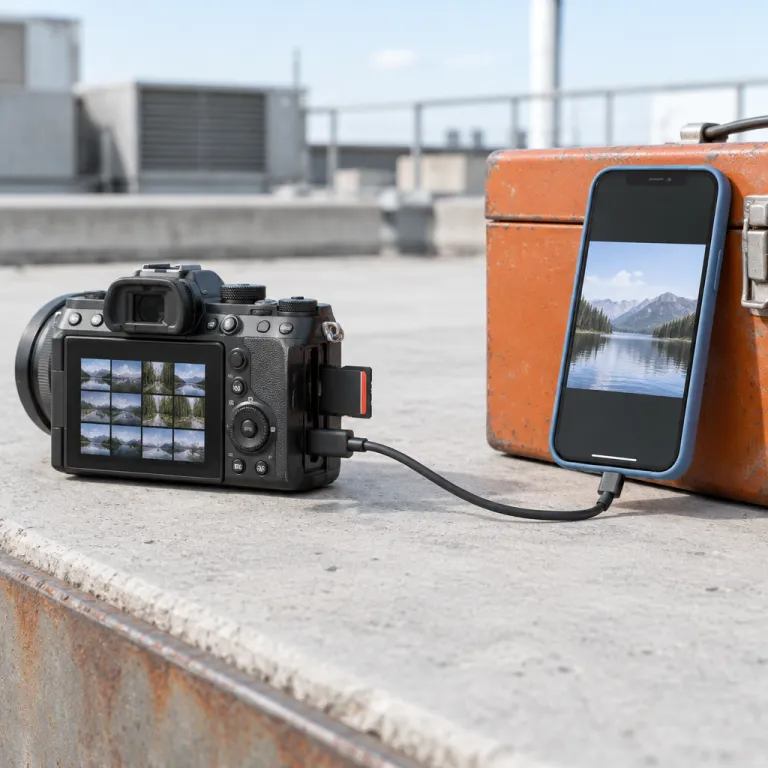
When you need speed and reliability, a cable or a card reader still beats wireless every time. A direct USB connection from camera to phone, or from a camera card to a compact reader, moves data at a rate that makes large photos, 4K videos, and long clips practical to handle. A decent USB‑C SD reader such as a SanDisk Extreme‑class device can reach 80–100 MB/s in real‑world use, which is several times faster than most wireless transfers. This is the workflow that lets you empty a full card safely, back up your work, and still have time to edit on the couch.
If your phone and camera both support modern USB standards, you can often connect them with a simple adapter USB cable or a small USB card reader. On an iPhone or iPad, that might mean using an Apple Lightning to USB Camera Adapter or a USB‑C multiport hub that combines a USB port and power pass‑through, while on Android devices you may rely on a compact USB‑C camera adapter that plugs straight into the phone. Always check that the adapter supports both data and power, because some cheap adapter iPhone or adapter iPad accessories only charge and never allow a proper transfer from the camera.
For older iPhone and iPad models that use a Lightning connector, a certified Lightning USB camera adapter or Lightning USB card reader is still the most stable option. You plug the camera card into the reader, connect it to the phone, then use the built‑in import tool to select photos from the card. If you want to understand which focal lengths are worth carrying before you even start this transfer process, a clear explainer on what 24 mm, 35 mm, 50 mm, and 85 mm actually see can help you shoot more intentional frames and fewer throwaways.
Choosing the right workflow for iPhone, Android, iPad, and mixed setups
The best way to transfer photos from camera to phone depends heavily on your mix of devices. An iPhone iPad pair behaves differently from a Mac Android combination, and each platform has its own strengths when you import files from a digital camera. Instead of chasing one universal trick, match your workflow to the hardware you already own and the kind of content you shoot.
If you live mostly in the Apple world with an iPhone and an iPad, a single camera adapter that handles both USB and card reader duties can simplify everything. You shoot, pop the camera card into the adapter, connect it to the iPhone or iPad, and use the Photos app to import only the photo and video selects you need. Later, you can sync those photos from phone to tablet or laptop using built‑in cloud services, which quietly gives you a second backup without extra effort.
On Android phones and tablets, a compact USB card reader or a small adapter USB dongle often does the same job with less fuss. Many Android devices support direct access to external storage, so you can browse photos from the card in a file manager and copy only what you need. Mixed setups, like shooting on a digital camera, backing up to a Mac Android pair, and then posting from a phone, work best when you standardize on one fast wired reader and treat everything else as a viewer.
A practical, repeatable workflow for creators who need to post fast
For a solo vlogger or content creator, the ideal workflow is boringly predictable. You shoot on a digital camera, transfer photos from camera to phone quickly, edit on the phone with your favorite app, and post while the moment still feels fresh. The fewer decisions you make about cables, readers, and adapters, the more energy you keep for framing, storytelling, and talking naturally to camera.
Here is a simple three‑step pattern that works across most devices and respects basic data privacy. Step 1: right after a shoot, use the manufacturer app over Wi‑Fi to pull 3–5 JPEGs for instant sharing, or skip straight to a wired USB camera adapter if you know you need everything. Step 2: when you have a few minutes and a charger nearby, plug in a USB‑C or Lightning card reader, copy the full batch of photos and videos to your phone or tablet, and let a cloud backup run in the background. Step 3: once the transfer from the card is complete, verify that a few key files open correctly on the phone before you format anything in camera.
Third, once the transfer from the card is complete, verify that the files open correctly on the phone before you format anything in camera. If you edit on a tablet, use an iPad connect workflow where the same adapter iPad or adapter iPhone accessory lets you move files between phone and tablet without touching the original card again. For creators who also shoot long form talking head content, a dedicated vlogging body such as the one reviewed in this camcorder and YouTube camera test can pair nicely with this workflow, because you always know exactly where your footage lives and how it reaches your phone.
Backup discipline, data safety, and avoiding one point of failure
Every time you transfer photos from camera to phone, you are also making a decision about risk. Keeping all your photos from a trip on a single camera card is convenient until that card fails, gets lost, or is accidentally formatted during a rushed import. A thoughtful backup habit turns your phone, your cloud service, and your computer into a safety net instead of three separate islands of data.
Start by treating the card in your digital camera as a temporary working drive, not an archive. After each shoot, use a reliable USB card reader or camera adapter to copy photos from the card to at least one other device, whether that is an iPhone, an Android phone, an iPad, or a Mac Android laptop pair. Once the transfer from the camera is complete, confirm that the photos and videos open correctly on the new device before you erase anything from the card.
Next, think about data privacy and long‑term storage. When you rely on cloud services to sync photos from phone to other devices, check the settings that control who can see shared albums and how long deleted items stay recoverable. A simple rule for beginners is this, card plus cloud beats card alone, and a workflow you trust is worth more than any spec sheet, because the camera that serves you best is not the one with the highest resolution, but the one whose files you can still find and share five years from now.
FAQ
How can I quickly move just a few photos from camera to phone while traveling ?
The fastest way to move a few images is usually the manufacturer app over Wi‑Fi or Bluetooth. Pair the phone once, keep Bluetooth enabled, then browse the camera card from the app and select only a handful of JPEGs to import. This avoids transferring huge RAW files and lets you post within minutes without unpacking a card reader or USB adapter.
Is a wired card reader really faster than wireless transfer for large shoots ?
Yes, a wired USB card reader or camera adapter is significantly faster and more stable for big batches. Wireless connections struggle with long videos and hundreds of high‑resolution photos, often dropping or stalling mid transfer. With a direct USB or Lightning USB connection running at tens of megabytes per second, you can empty a full card in one pass and verify the files before you format anything in camera.
What is the safest way to avoid losing my photos when I clear my camera card ?
The safest approach is to have at least two independent copies before you erase the card. First, transfer photos from the camera card to a phone, tablet, or computer using a reliable reader or adapter, then confirm the files open correctly. Second, back those files up to a cloud service or an external drive so that a single lost device or corrupted card does not wipe out your work.
Do I need different adapters for iPhone, iPad, and Android devices ?
You may need different adapters depending on the connector each device uses. Older iPhone and iPad models require a Lightning USB camera adapter or Lightning card reader, while newer Apple devices and most Android phones use USB‑C readers. If you work across several platforms, choosing a compact USB‑C card reader plus a small adapter iPhone or adapter iPad dongle can keep your kit simple and flexible.
Should I shoot RAW if I plan to edit only on my phone ?
Shooting RAW gives you more flexibility but also creates much larger files that are slower to transfer and heavier to edit on a phone. Many creators shoot RAW plus JPEG, then transfer only the JPEGs to the phone for quick edits while keeping the RAW files on a computer for deeper work later. This hybrid approach balances speed, storage, and quality, especially when you rely on wireless apps or limited mobile data.