


Understanding the difference between dust and dead pixels
Dust or Dead Pixels? Why It Matters for Your Camera
When you notice strange spots or colored dots on your digital camera’s screen or in your images, it’s easy to wonder if you’re dealing with dust or dead pixels. Understanding the difference is key to knowing how to remove the problem and keep your camera in top condition. Both issues can affect your photos, but they have different causes and solutions.
- Dust usually appears as blurry, dark, or gray spots in the same place on every photo, especially when using a small aperture. These spots are caused by tiny particles on your camera sensor or lens. Dust is a common issue, and most photographers will encounter it at some point. The good news is, you can often clean it yourself or with professional help.
- Dead pixels are individual pixels on your camera sensor or monitor that no longer respond to light. They can show up as tiny black, white, or colored dots that stay in the same spot, no matter which lens you use or how you move the camera. Unlike dust, dead pixels are a hardware issue and may require a different approach to fix or work around.
It’s important to correctly identify whether you’re seeing dust or a dead pixel. Dust can usually be removed, while dead pixels might need a repair, a workaround, or even a replacement in some cases. Many users share their experiences and solutions in forums and Reddit threads, discussing how to keep their cameras dust free and how to spot pixel issues.
If you’re unsure, try displaying your photos on a different monitor or screen. If the spots or colored dots remain in the same place, it’s likely a sensor issue. If they disappear, it could be your display. For more on choosing the right lens to minimize dust and pixel problems, check out this guide on how to choose the best telephoto lens for your Canon camera.
In the next sections, we’ll look at the most obvious signs of dust, how to spot dead pixels, and practical steps to keep your camera performing at its best.
Common signs of dust on your camera sensor
Recognizing Sensor Dust in Your Photos
Dust on your camera sensor is a common issue for digital camera users. It can be frustrating, especially when you notice unexpected spots or marks on your images. Understanding how to identify dust is essential before you try to remove it or consider other causes like dead pixels.
- Appearance of Spots: Dust usually shows up as small, blurry, or dark spots in the same place on every photo, especially when shooting at higher f-numbers (like f/11 or f/16). These spots are often more obvious against bright, uniform backgrounds, such as a clear sky or a white wall.
- Location Consistency: If you see the same marks in the same spot across multiple images, it’s likely dust on the sensor, not on the lens. Try changing lenses or cleaning the front element—if the spots don’t move, the sensor is the culprit.
- Shape and Edges: Dust spots tend to have soft, undefined edges. Unlike dead pixels, which are single points, dust can look like smudges or faint circles.
- Testing for Dust: To check for dust, take a photo of a plain, bright surface (like a white screen or a clear sky) with a small aperture. Review the image on your monitor and zoom in to inspect for any repeating spots or marks.
- Forums and Community Replies: Many users on photography forums, such as Reddit, share their experiences with dust issues. You’ll find threads discussing how to spot and remove dust, as well as tips for keeping your camera dust free.
It’s important not to confuse dust with dead or stuck pixels. Dust appears as larger, softer spots, while dead pixels are tiny and sharply defined. If you’re unsure, comparing your results with examples from trusted sources or community threads can help. For more on lens choices that can minimize dust entry, check out this guide to must-have lenses.
Regular cleaning and careful lens changes can help keep your sensor dust free. In case you need to remove dust, there are practical steps you can follow, which will be covered in the next section. Always use the right tools and methods to avoid damaging your camera.
How to spot dead pixels in your images
Recognizing Dead Pixels in Your Photos
When reviewing your images on your monitor or camera screen, you might notice tiny spots that don’t seem to belong. Dead pixels are a common issue in digital cameras and can be confused with dust, but there are some clear ways to tell them apart. Here’s how to spot dead pixels and what makes them different from dust spots:
- Consistent Location: Dead pixels always appear in the same spot on every photo, regardless of the subject or lens. If you see a black or colored dot in the exact same place across multiple images, it’s likely a dead pixel.
- Color and Shape: Dead pixels can be black, white, red, blue, or green. They often look like a single pixel or a tiny cluster, unlike dust which usually appears as a soft, blurry spot.
- Zoom Test: Zoom in on your images using your preferred photo viewer or editing app. Dead pixels remain sharp and defined at any zoom level, while dust spots become less obvious or more diffuse.
- Test with a Clean Sensor: After you clean your sensor and lens, if the spot remains, it’s probably a dead pixel. Dust should be removed after a proper cleaning.
- Screen vs. Sensor: Sometimes, what looks like a dead pixel is actually a stuck pixel on your monitor or camera screen. To confirm, view your images on a different device or display websites correctly using an alternative browser or after a correctly upgrade. If the spot moves or disappears, it’s a screen issue, not a sensor pixel.
Many users discuss these issues in forums and Reddit threads, sharing replies and tips on how to identify and remove both dust and dead pixels. If you want to keep your camera dust free and minimize pixel problems, regular maintenance and careful handling are key. For those who shoot outdoors or in challenging conditions, using a sturdy tripod like the Leofoto LS-325CEX CF tripod can help keep your gear steady and reduce the risk of dust entering your camera body.
In case you’re unsure whether you’re dealing with dust or a dead pixel, comparing your images before and after cleaning, and checking them on different screens, can help you diagnose the issue. If you find a persistent pixel dead spot, you may need to consider repair or software workarounds, which we’ll cover in the next section.
Causes of dust and dead pixels in digital cameras
Why Dust and Dead Pixels Happen in Digital Cameras
Understanding the root causes behind dust and dead pixels can help you keep your camera in top condition and avoid unnecessary frustration. Both issues are common, but they come from different sources and require different solutions.
- Dust on the Sensor: Dust is a physical particle that can enter your camera body, especially when changing lenses. Even in a dust free environment, tiny particles can settle on the sensor or inside the lens. This is more obvious if you often swap lenses outdoors or in windy places. Over time, dust can build up, leading to black or gray spots on your images. These spots are usually more visible against bright, even backgrounds like the sky or a white wall.
- Dead Pixels: Dead pixels are a different case. They are individual pixels on your camera’s sensor or screen that no longer respond to light. This can be due to manufacturing defects, age, or electronic failure. A dead pixel will show up as a tiny, fixed color dot—often black, white, red, or blue—no matter what you photograph. Stuck pixels are similar, but they may display a constant color instead of being completely dead.
Factors That Increase the Risk
- Frequent Lens Changes: Every time you remove the lens, you expose the sensor to dust. Using a clean environment and minimizing lens swaps can help.
- Camera Age and Usage: Older cameras or those used heavily may develop more dead pixels over time. This is a normal part of sensor wear.
- Storage and Handling: Storing your camera without a body cap, or in dusty areas, increases the chance of dust settling inside. Always use protective caps and cases.
- Manufacturing Variations: Some sensors may have a higher chance of pixel defects from the start. Manufacturers often allow a small number of dead pixels as acceptable, but if you notice new ones appearing, it could be a sign of sensor degradation.
Community Replies and Resources
Many photographers share their experiences and solutions on forums like Reddit, in threads dedicated to dust remove tips or dead pixel fixes. Searching for terms like "dust thread starter" or "dead pixel monitor" can help you find advice tailored to your camera model. Some users recommend using an alternative browser or upgrading your browser to display websites correctly when accessing these forums. If you want to share your findings, most forums offer options like share link, email share, or share Facebook and Twitter.
For those who prefer apps, some install app solutions can help you identify and map dead pixels on your screen. However, always make sure you correctly upgrade your software and check that websites display websites as intended before relying on online tools.
Practical steps to remove dust from your camera sensor
Effective Methods to Clean Your Camera Sensor
Keeping your digital camera sensor dust free is crucial for maintaining image quality. Dust particles can show up as black or gray spots on your photos, especially against bright backgrounds. If you notice these spots, it’s likely time to remove dust from your sensor. Here are practical steps to help you clean your camera sensor safely and effectively:- Check for Dust: Before cleaning, use your camera’s sensor cleaning mode or take a test photo of a plain white screen or sky at a small aperture (like f/16). Review the image on your monitor to spot any obvious dust spots or pixels that look out of place.
- Gather the Right Tools: Use a blower (not canned air) to gently remove loose dust. Specialized sensor cleaning kits are available for more stubborn dust. Avoid using household items, as they can scratch or damage the sensor.
- Work in a Clean Environment: Choose a dust free area to avoid introducing new particles. Turn off fans and close windows. Lay your camera on a clean surface, lens mount facing up.
- Use the Blower: With the lens removed and the camera set to sensor cleaning mode, gently blow air across the sensor from top to bottom. Don’t touch the sensor with the blower tip.
- Wet Cleaning (If Needed): If dust remains, use a sensor swab and cleaning solution designed for your camera type. Swipe gently from one side to the other. Don’t reuse swabs, as this can reintroduce dust or leave streaks.
- Recheck Your Results: Take another test photo and inspect it on your computer screen. If spots persist, repeat the process or consider professional cleaning if you’re unsure.
Tips to Prevent Dust Build-Up
- Always turn off your camera before changing lenses to reduce static that attracts dust.
- Keep your lens and camera body caps clean and in place when not in use.
- Store your camera in a case when not shooting, and avoid changing lenses in dusty environments.
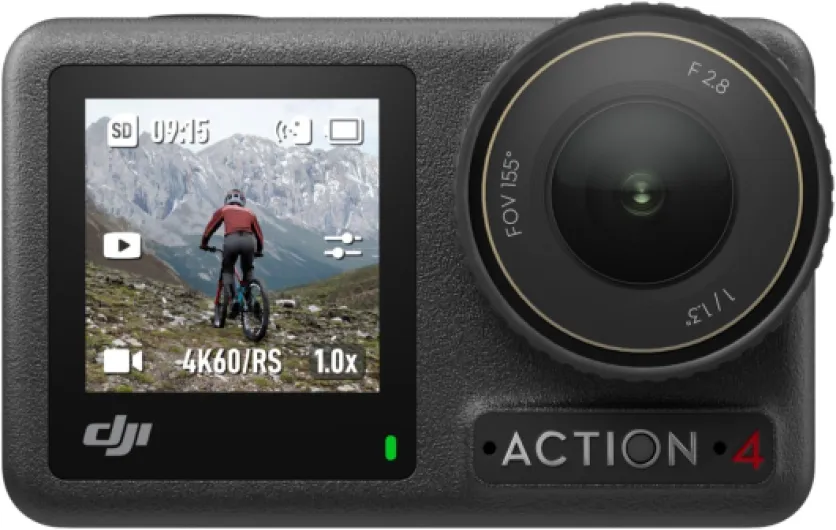
- + Résolution 4K à 120fps
- + Étanche pour les activités nautiques
- + Capteur de 1/1.3 pouces pour une meilleure qualité d'image
- + Excellente performance en faible luminosité
- + Performances couleur 10 bits et D-Log M

What to do about dead pixels: repair or workaround
Managing Dead Pixels: Practical Solutions and Workarounds
Dead pixels can be frustrating, especially when you notice black or colored spots on your screen or in your images. Unlike dust, which you can often remove with careful cleaning, dead pixels are a hardware issue. Here’s what you can do if you discover dead or stuck pixels on your digital camera sensor or monitor:
- Confirm the Issue: First, make sure the spot is a dead pixel and not dust. Dust typically appears as soft, blurry spots, while dead pixels are sharp, single points—often black, white, red, or blue. Use a clean lens and check your images on different monitors to rule out display issues.
- Check Your Warranty: If your camera is still under warranty, contact the manufacturer or authorized service center. Many brands have policies for pixel defects, but the number of dead pixels required for a replacement can vary. Always check official replies on forums or the manufacturer’s website for your specific case.
- Software Workarounds: Some editing software can map out or mask dead pixels automatically. This is a common solution discussed in photography forums and reddit threads. You can also use clone or healing tools to remove visible spots in post-processing, especially if the dead pixel is obvious and always in the same place.
- Pixel Mapping Feature: Some cameras offer a built-in pixel mapping function. This tool scans the sensor and attempts to correct or hide dead pixels. Refer to your camera’s manual or support site to see if this feature is available and how to use it correctly.
- Professional Repair: If the dead pixel is distracting or if there are multiple pixel dead spots, consider professional sensor cleaning or repair. While dust remove services are common, sensor replacement for dead pixels can be costly, so weigh your options.
- Monitor Issues: If you see dead pixels only on your monitor, test your images on another display or device. Sometimes, the problem is with the screen, not the camera. In this case, upgrading to an alternative browser or display may help you view websites correctly and display websites as intended.
Remember, a single dead pixel rarely affects image quality in real-world use. If you only notice it when pixel peeping from top to bottom of your images, it may not be worth the hassle to repair. However, for those seeking a dust free and pixel-perfect workflow, these steps can help you address the issue. For more advice, check out photography forums or share your experience on facebook, twitter, or email share links to get replies from the community. All rights reserved.