

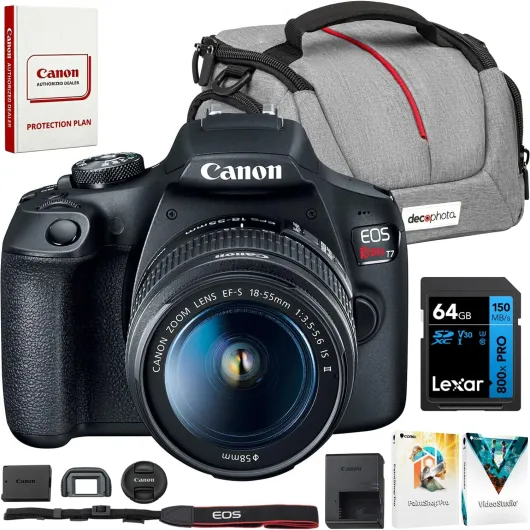
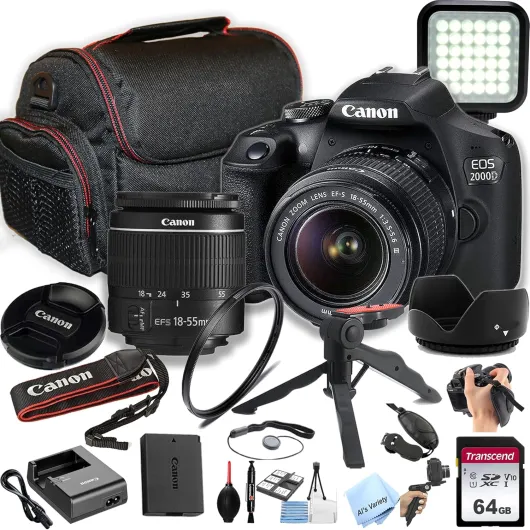
Understanding why dslr cameras are popular for streaming
Why Streamers Choose DSLR Cameras
DSLR cameras have become a top choice for live streaming, and it’s not just about the professional look. Compared to standard webcams, a DSLR camera delivers high quality video, better low light performance, and more creative control. Whether you’re streaming on platforms like Streamyard or using your camera as a dslr webcam, the difference in image quality is clear.
Superior Image and Video Quality
The large sensors in DSLR and mirrorless cameras capture more light, resulting in sharper, more vibrant video. This is especially important for live streams where you want to stand out with crisp visuals. Features like full frame sensors and high bit rates help maintain detail, even in challenging lighting. Entry level models can already outperform most built-in laptop webcams.
Flexibility and Professional Features
- Interchangeable lenses let you adapt to different streaming setups, from wide shots to close-ups.
- Manual controls allow you to fine-tune exposure, focus, and color for a polished look.
- Clean HDMI output ensures your video feed is free from distracting overlays, making it ideal for live streaming with a capture card or cam link.
Connectivity and Versatility
Modern DSLR and mirrorless cameras offer multiple ways to connect to your computer. You can use a USB cable with webcam utility software, or go for an HDMI output paired with a capture card for even higher quality. Some models, like the Canon EOS series, are especially popular for their reliable clean HDMI and easy integration with streaming platforms.
Audio and Accessory Support
Audio quality is just as important as video. DSLRs often include microphone inputs, letting you use external microphones for clearer sound. This flexibility is a big step up from most webcams, which are limited to built-in mics.
DSLR vs. Mirrorless for Streaming
While both DSLR and mirrorless cameras are excellent for streaming, mirrorless cameras tend to be more compact and offer faster autofocus. However, DSLRs are still widely used for their robust build and battery life. If you’re curious about how these camera types compare in other photography areas, check out this in-depth look at camera features.
Key features to look for in a dslr for streaming
Essential Specs for Streaming Success
When choosing a DSLR camera for live streaming, certain features make a big difference in your video quality and overall experience. The right camera can turn your live streams into professional-looking productions, whether you’re using platforms like StreamYard or connecting your DSLR as a webcam.
- Clean HDMI Output: A must-have for streaming. This feature lets you send a video signal without overlays (like battery life or focus points) through an HDMI cable. Not all DSLR or mirrorless cameras offer a clean HDMI output, so check the specs carefully.
- Autofocus Performance: Fast and reliable autofocus keeps your image sharp, especially if you move around during your live streams. Look for cameras with continuous autofocus in video mode.
- Video Resolution and Frame Rate: For high quality streams, aim for at least 1080p (Full HD) video. Some cameras offer 4K, but 1080p is often enough for most live streaming needs. Higher frame rates (like 60fps) can make your video look smoother.
- Low Light Capability: Streaming environments aren’t always perfectly lit. A camera with good low light performance and a large sensor (like APS-C or full frame) helps maintain quality even in dim settings.
- External Microphone Input: Built-in microphones rarely deliver high quality audio. Choose a DSLR with a microphone jack so you can connect an external mic for clearer sound.
- Webcam Utility Support: Some brands, like Canon EOS, offer official webcam utility software. This lets you use your DSLR as a webcam via USB, skipping the need for a capture card in some cases.
- Reliable Power Options: Live streaming can drain batteries quickly. Look for models that support AC adapters or USB charging for longer sessions.
- Compatibility with Capture Cards: If your camera doesn’t have webcam utility support, you’ll need a capture card (like Cam Link) to connect the HDMI output to your computer. Make sure your camera works well with popular capture cards.
DSLR vs. Mirrorless for Streaming
Both DSLR and mirrorless cameras can deliver high quality video for live streaming. Mirrorless cameras are often more compact and offer advanced autofocus, while DSLRs may provide longer battery life and a wider selection of lenses. Entry level models from both categories can be suitable, but check for the features above before deciding.
Popular Models and What to Consider
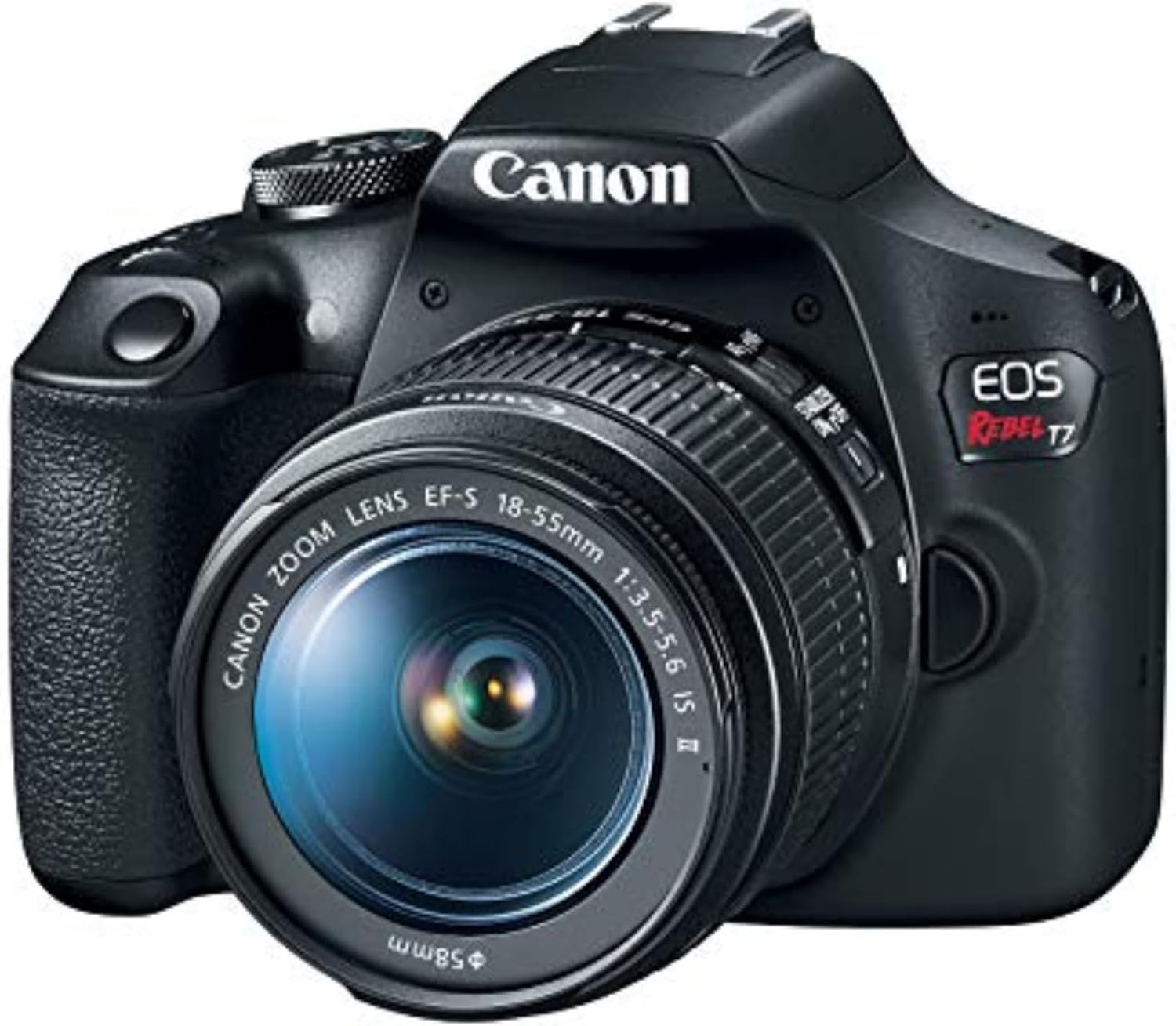
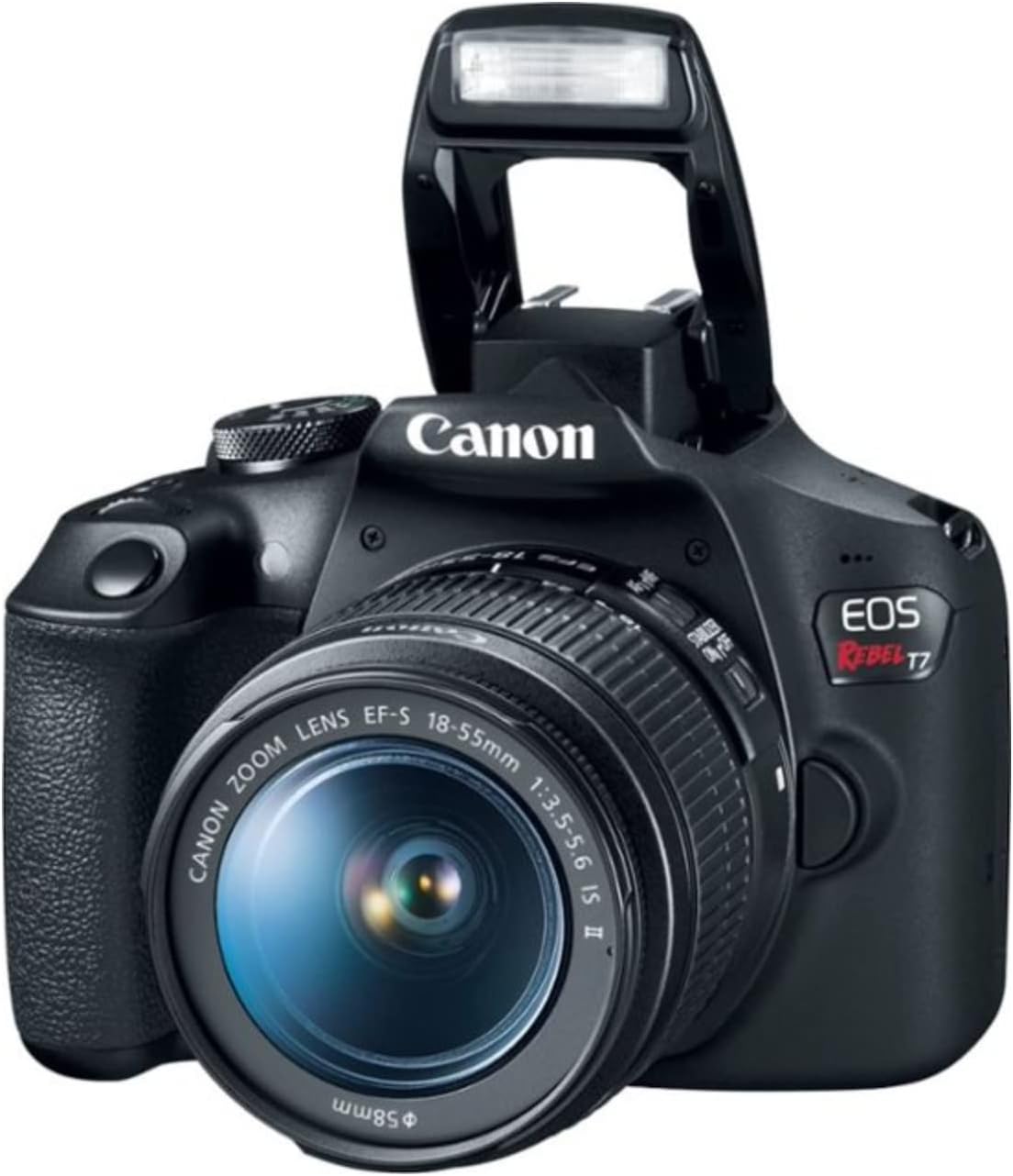
Canon EOS cameras are a favorite for many streamers due to their clean HDMI output and webcam utility. Other brands also offer strong contenders, but always verify the camera’s streaming capabilities. For a deeper look at why certain models remain popular among enthusiasts, check out this review of the Minolta XD11.
Remember, your choice should fit your streaming setup, whether you’re using HDMI cables, USB connections, or capture cards. The right camera, paired with good lighting and audio, sets the foundation for high quality live streams.
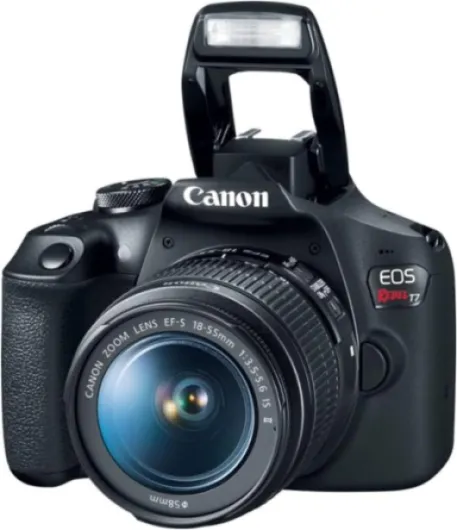
- + Two Lenses Included: EF 18-55mm and EF 75-300mm
- + Beginner Friendly: Easy to use for new photographers
- + High Image Quality: Great for photos and videos
- + Interchangeable Lenses: Flexible for different shooting situations

Setting up your dslr for live streaming
Connecting Your DSLR or Mirrorless Camera for Streaming
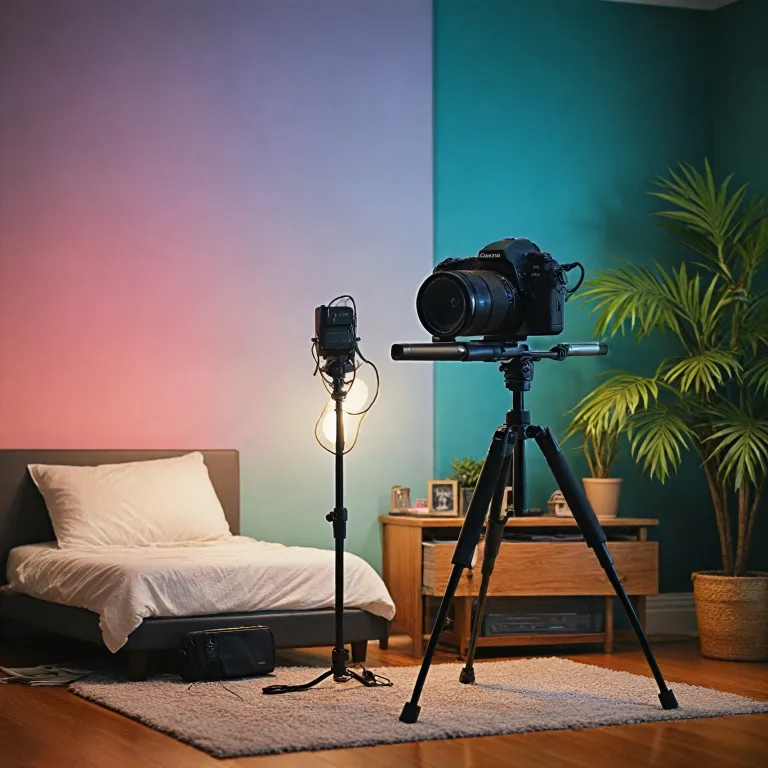
To start live streaming with a DSLR or mirrorless camera, you need to connect it to your computer in a way that allows it to act as a high quality webcam. This setup can seem technical, but breaking it down step by step makes it manageable for beginners and experienced users alike.
- Check for Clean HDMI Output: Your camera must have a clean HDMI output, meaning it sends video without overlays like battery or focus indicators. Most recent Canon EOS, Nikon, and Sony models offer this feature. Check your camera’s manual or settings menu to enable clean HDMI.
- Choose the Right Capture Card: A capture card converts your camera’s HDMI signal into a USB input for your computer. Popular options include the Elgato Cam Link or AVerMedia cards. Plug the HDMI cable from your camera into the capture card, then connect the card to your computer via USB.
- Install Webcam Utility Software: Some brands, like Canon, offer webcam utility software that lets you connect your camera directly via USB, skipping the capture card. This is convenient for entry level streaming, but using HDMI and a capture card usually gives higher video quality and less lag.
- Power Solutions: For longer live streams, use an AC power adapter or dummy battery to avoid interruptions. Relying on the standard battery can cut your stream short.
- Audio Setup: While many cameras have built-in microphones, external microphones deliver much better sound. Connect a microphone directly to your camera’s mic input, or use an audio interface for even higher quality.
Configuring Camera Settings for Streaming
Once your camera is physically connected, adjust the settings for optimal streaming quality:
- Set Video Resolution and Frame Rate: Most platforms support 1080p at 30fps, which balances quality and performance. Some full frame cameras and mirrorless cameras can handle 4K, but check your internet speed and streaming platform requirements.
- Manual Focus and Exposure: Lock focus and exposure to avoid sudden changes during your live stream. Use manual mode for consistent results, especially in low light conditions.
- Disable Auto Power Off: Prevent your camera from shutting down mid-stream by turning off auto power-off features in the menu.
Streaming Software and Platform Integration
With your camera and computer ready, choose your streaming software. OBS Studio, Streamlabs, and StreamYard are popular choices. Add your camera as a video source, select the capture card or webcam utility, and adjust the video settings for the best quality.
For more creative control, consider using a 16mm camera for unique streaming projects or experiment with different lenses to change your video’s look.
| Component | Purpose | Tips |
|---|---|---|
| DSLR/Mirrorless Camera | Captures high quality video | Check for clean HDMI output |
| HDMI Cable | Transfers video signal | Use a reliable, high speed cable |
| Capture Card | Converts HDMI to USB | Choose a card compatible with your camera and computer |
| Microphone | Improves audio quality | External mics outperform built-in options |
| Streaming Software | Broadcasts your live stream | OBS, StreamYard, and others offer different features |
Setting up your DSLR or mirrorless camera for live streaming takes some preparation, but the boost in video and audio quality is worth it for anyone serious about live streams.
Optimizing video and audio quality
Improving Your Video Output
Getting high quality video from your DSLR or mirrorless camera is essential for professional-looking live streams. Start by using a clean HDMI output. This removes overlays like battery status or focus points, giving you a pure video signal. Most recent Canon EOS and other popular models offer this feature, but always double-check your camera’s specs.
Pair your camera with a reliable capture card (like Elgato Cam Link or similar). This device connects your camera’s HDMI output to your computer via USB, letting your computer recognize your DSLR as a webcam. For entry level streaming, some cameras support direct USB streaming with webcam utility software, but HDMI capture generally delivers higher quality and less lag.
- Use a high-speed HDMI cable for stable video transmission.
- Set your camera to manual mode to control exposure, ISO, and white balance for consistent results.
- Choose the highest supported resolution and frame rate (ideally 1080p at 30fps or 60fps) for smooth, sharp video.
- Full frame and advanced mirrorless cameras often perform better in low light, reducing noise in your live streams.
Getting the Best Audio
While video quality is crucial, don’t overlook audio. Built-in microphones on DSLRs and mirrorless cameras are usually not suitable for live streaming. Instead, use an external microphone connected directly to your camera or your computer. Many streamers prefer USB microphones for simplicity, but XLR mics with an audio interface offer even higher quality.
- Check your camera’s audio input options. Some entry level models lack a microphone jack.
- Monitor audio levels to avoid distortion or background noise.
- For dual audio sources (camera and computer), sync them in your streaming software (like StreamYard) to prevent lip sync issues.
Fine-Tuning for Live Streaming
To keep your live stream looking professional, use continuous power for your DSLR camera. A dummy battery or AC adapter prevents your camera from shutting off mid-stream. Also, disable auto shut-off and enable autofocus tracking if your camera supports it, especially for dynamic content.
Mirrorless cameras and DSLRs can overheat during long live streams, so monitor temperature warnings. If your camera supports it, lower the bit rate or resolution slightly to reduce heat build-up without sacrificing too much quality.
Finally, test your setup before going live. Adjust lighting to minimize shadows and ensure your camera’s sensor is clean for the sharpest image. With the right combination of camera, capture card, microphone, and settings, you’ll achieve a high quality live streaming experience that stands out.
Troubleshooting common streaming issues with dslr cameras
Frequent Connection and Signal Problems
When using a DSLR or mirrorless camera for live streaming, connection issues are common. If your camera isn’t recognized as a webcam, check that your USB cable or HDMI cable is securely connected. For cameras like Canon EOS models, make sure you’re using the correct webcam utility or capture card. Some entry level DSLRs may require a specific driver or software update. If you’re using a capture card like Cam Link, ensure it’s compatible with your camera and streaming platform, such as StreamYard.
Dealing with Video Quality Drops
Video quality can suffer due to several factors. If your live stream appears pixelated or laggy, verify your HDMI output settings. Use a clean HDMI output to avoid on-screen overlays. For high quality streams, set your camera to output at the highest bit rate supported by your capture card. Low light conditions can also impact video quality, so adjust your camera’s ISO and aperture for optimal exposure. Full frame and mirrorless cameras often perform better in low light than some entry level DSLRs.
Audio Sync and Microphone Issues
Audio lag or poor microphone quality is a frequent complaint. If your audio is out of sync with your video, try connecting your microphone directly to your computer or streaming device, rather than through the camera. Some DSLRs introduce latency when passing audio through HDMI. Use an external microphone for higher quality sound, and check your streaming software’s audio settings to correct any delay.
Camera Overheating and Power Loss
Long live streams can cause some DSLR and mirrorless cameras to overheat or shut down. To avoid this, use an AC power adapter instead of batteries. If your camera supports it, enable any available power-saving features that don’t affect HDMI output. Keep your camera in a well-ventilated area, and monitor its temperature during live streams.
Autofocus and Exposure Fluctuations
Autofocus hunting or exposure shifts can distract viewers. For a more professional look, set your camera to manual focus and lock your exposure before starting your live stream. This is especially important with Canon EOS and other popular models, as autofocus can be sensitive to movement or changes in lighting.
- Always use a clean HDMI output for a clutter-free video feed
- Test your setup before going live to catch potential issues early
- Keep firmware and streaming software up to date for best compatibility
Comparing popular dslr models for streaming
Popular DSLR and Mirrorless Choices for Streaming
When it comes to live streaming, not all cameras are created equal. The right DSLR or mirrorless camera can make a big difference in video quality, ease of setup, and overall streaming experience. Here’s a look at some of the most popular models and how they stack up for live streams.| Model | Sensor Type | Clean HDMI Output | Webcam Utility Support | Low Light Performance | Notable Features |
|---|---|---|---|---|---|
| Canon EOS M50 Mark II | APS-C (Mirrorless) | Yes | Yes | Good | Articulating screen, USB webcam, compact |
| Canon EOS 90D | APS-C (DSLR) | Yes | Yes | Very Good | High resolution, HDMI output, robust autofocus |
| Sony Alpha a6400 | APS-C (Mirrorless) | Yes | Via third-party | Excellent | Fast autofocus, compact, clean HDMI |
| Nikon Z50 | APS-C (Mirrorless) | Yes | Yes | Good | Flip-down screen, USB webcam, lightweight |
| Canon EOS Rebel T7i / 800D | APS-C (DSLR) | Yes (with overlays off) | Yes | Good | Entry level, affordable, HDMI output |
| Sony Alpha a7 III | Full Frame (Mirrorless) | Yes | Via third-party | Excellent | High quality, great in low light, pro features |
What Sets These Cameras Apart for Streaming?
- Clean HDMI Output: Essential for a professional live stream without on-screen overlays. Most recent models offer this, but always check before buying.
- Webcam Utility or USB Support: Some brands, like Canon with its EOS Webcam Utility, let you connect the camera directly via USB for streaming, skipping the need for a capture card.
- Low Light Performance: Streaming in less-than-ideal lighting? Full frame and some APS-C sensors handle low light better, giving you a cleaner video signal.
- Autofocus and Articulating Screens: Fast autofocus and flip-out screens help keep you in focus and make framing easier during live streams.
DSLR vs. Mirrorless for Live Streaming
Both DSLR and mirrorless cameras can deliver high quality video for streaming. Mirrorless cameras are often lighter and offer better autofocus in video mode, while DSLRs may provide longer battery life and a familiar feel for those used to traditional cameras. Entry level models like the Canon EOS Rebel series are budget-friendly, while full frame mirrorless cameras like the Sony a7 III deliver top-tier quality for demanding live streams.Other Considerations
- Capture Card: For HDMI output, a capture card like the Cam Link is needed to connect your camera to your computer for streaming on platforms like Streamyard.
- Microphone Input: Built-in mics are rarely enough for high quality audio. Look for a camera with a microphone input, or use an external audio interface.
- HDMI Cable Quality: A reliable HDMI cable ensures stable video signal during long live streams.